
There are two ways to import SolarAnywhere® Data into HelioScope for use in PV production modeling:
- Import the data directly into HelioScope using the SolarAnywhere API.
- Download SolarAnywhere Data from data.solaranywhere.com and import the file(s) into HelioScope.
API integration is only available to SolarAnywhere Typical Year Unlimited and Enterprise, Typical Year+, and Sites customers. Sites users must first activate their desired site through our web portal prior to accessing data via API.
Import using the SolarAnywhere API
SolarAnywhere API users can take advantage of our integration with HelioScope simulation software by following these steps:
- Generate a SolarAnywhere API Key or request an API key from the license manager of your SolarAnywhere Account.
- In HelioScope, navigate to Settings, and then Integrations.
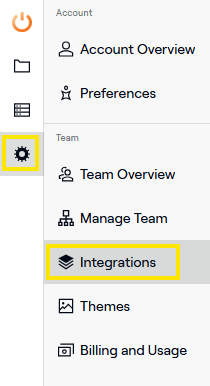
- Select Configure under SolarAnywhere Weather.
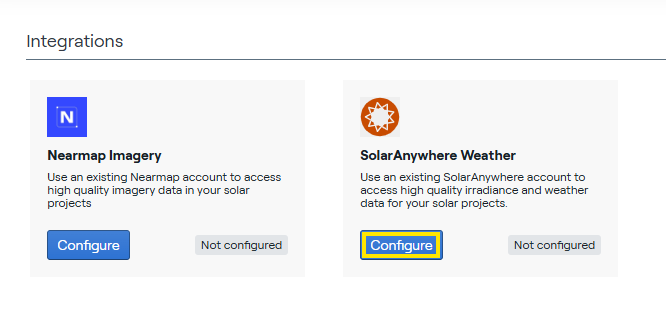
- Enter your 64-character API key and click Connect.
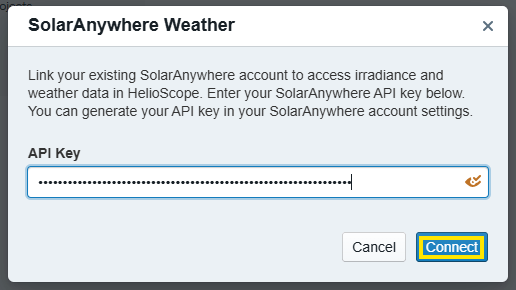
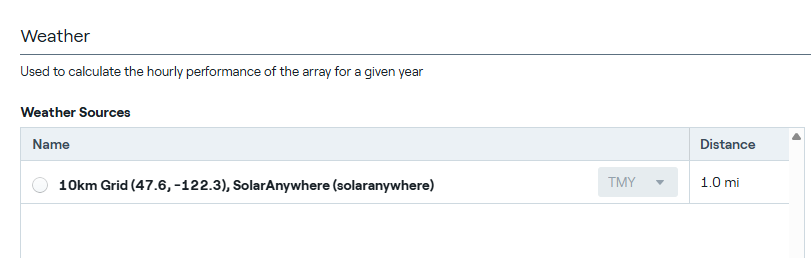
- In your project, open the Condition Set, and under Weather, select Load SolarAnywhere.
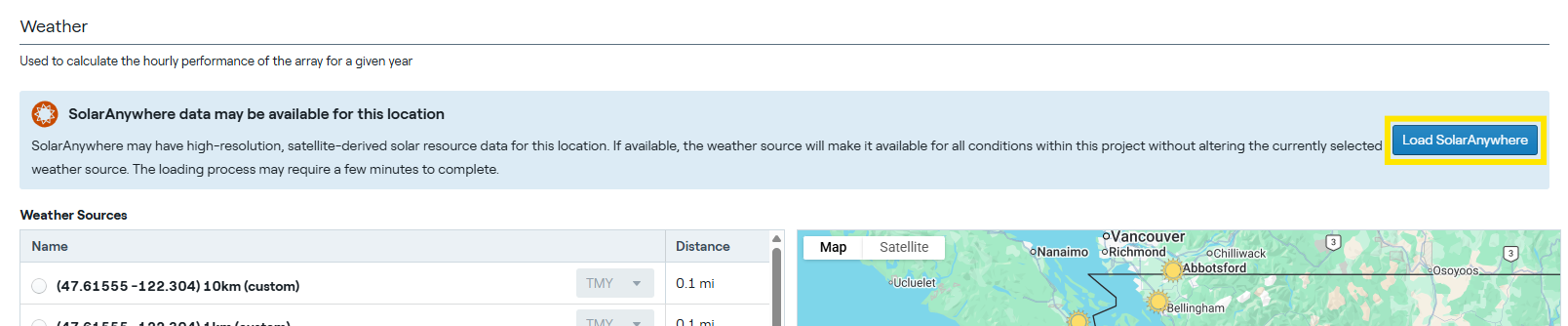
- Once loaded, the SolarAnywhere data is shown as one of the available Weather Sources within all condition sets for your project.
Tip: Set SolarAnywhere as your preferred data source by going to Settings, Team Overview, and Selecting SolarAnywhere as the Preferred File Type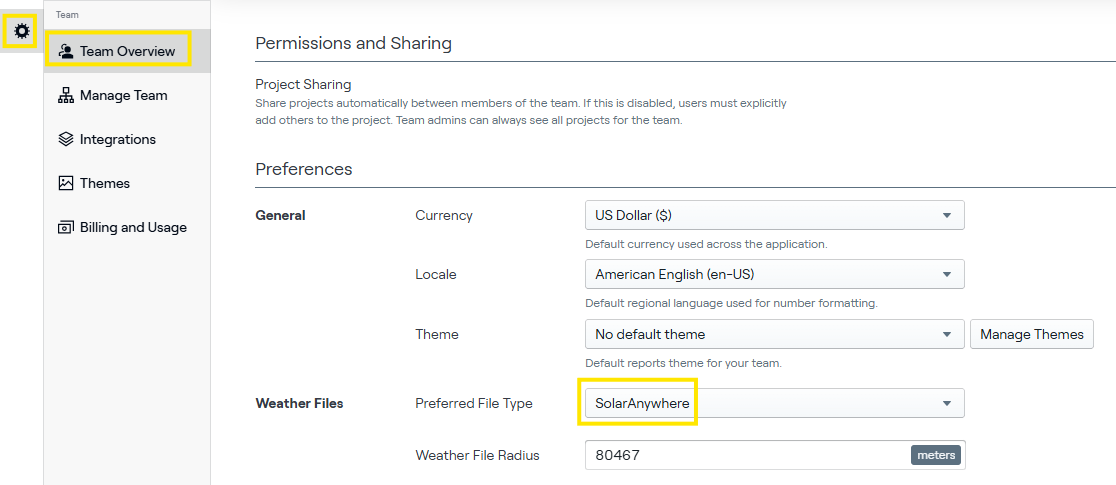
Import a downloaded SolarAnywhere file
SolarAnywhere typical-year data can easily be imported into HelioScope by following a few simple steps:
- Download typical-year data from SolarAnywhere in TMY3 output format in 60-minute temporal resolution.
- In your project, open your condition set and select Upload Weather Source.
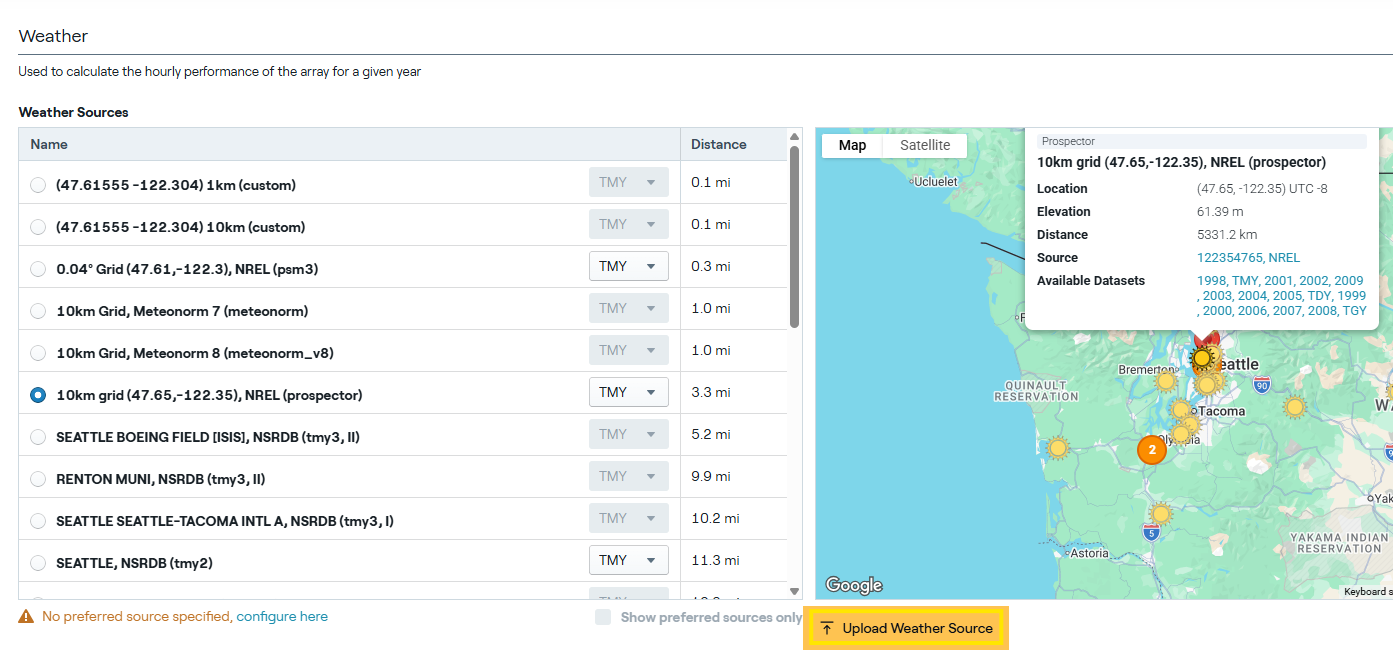
- Click Select Files and select your SolarAnywhere downloaded TMY3 file and then select Upload.

- Then select your uploaded file from the Weather Sources list.
How to add Snow/Soiling Losses and Albedo
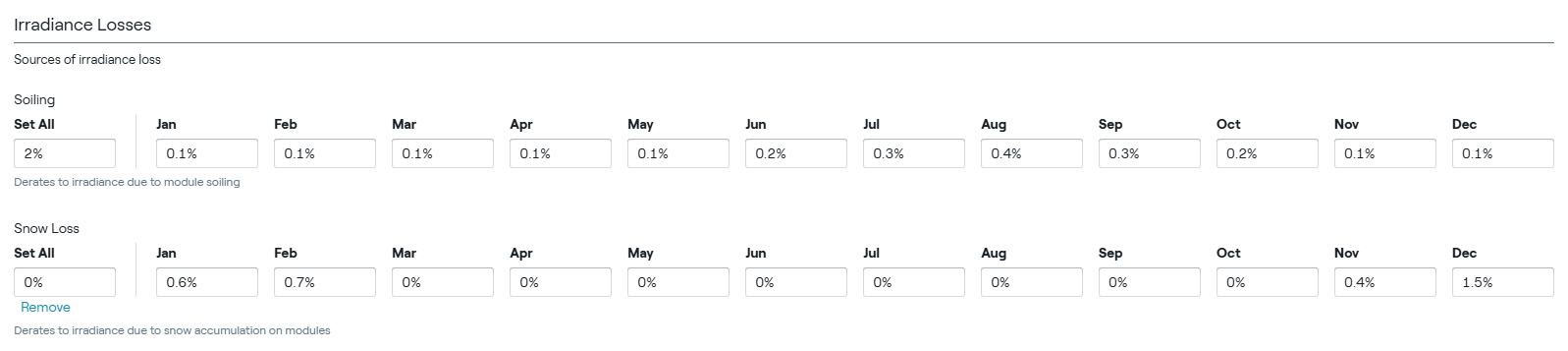
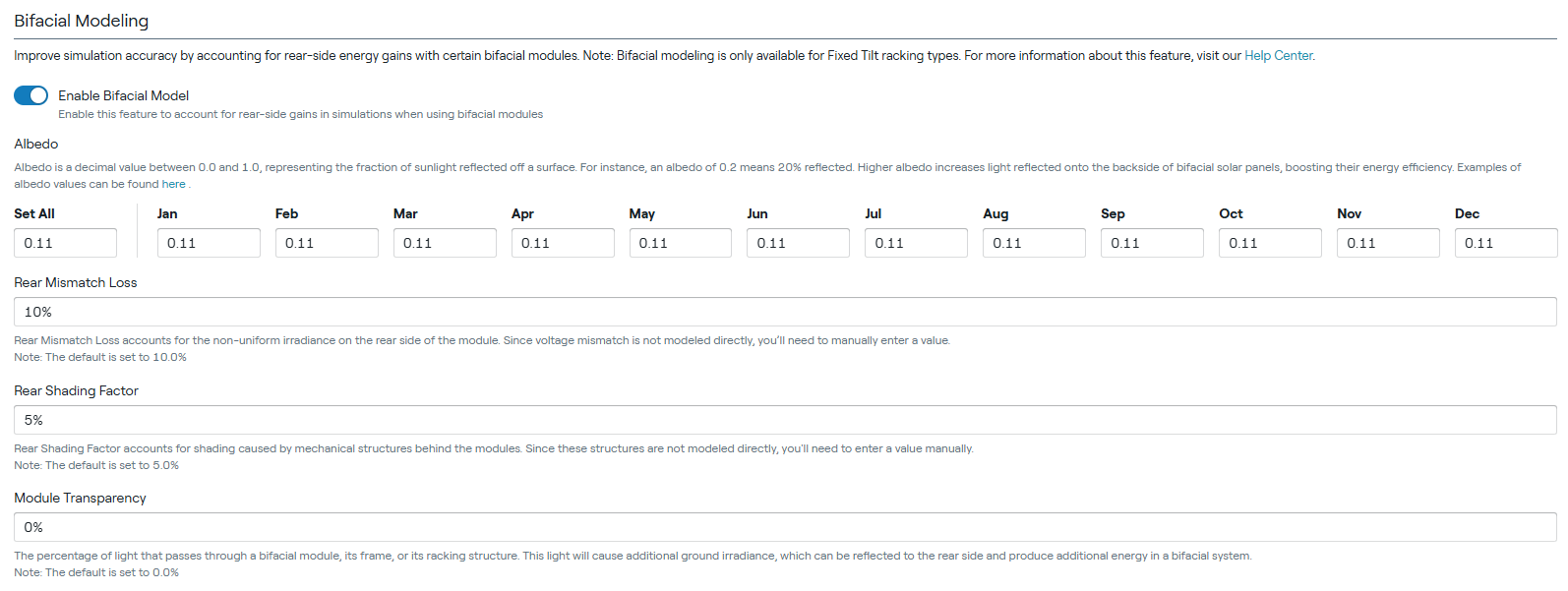
SolarAnywhere monthly average loss and albedo values can be downloaded in an Average Year Summary file and then manually added in to your Condition Set for all license types.
- Download Average Year Summary file from the SolarAnywhere data portal. Select from either the HSU or Kimber soiling-loss models and the NREL or Townsend snow-loss models on the PV System Configuration tab. Information regarding the models can be found on our soiling-loss page and snow-loss page.
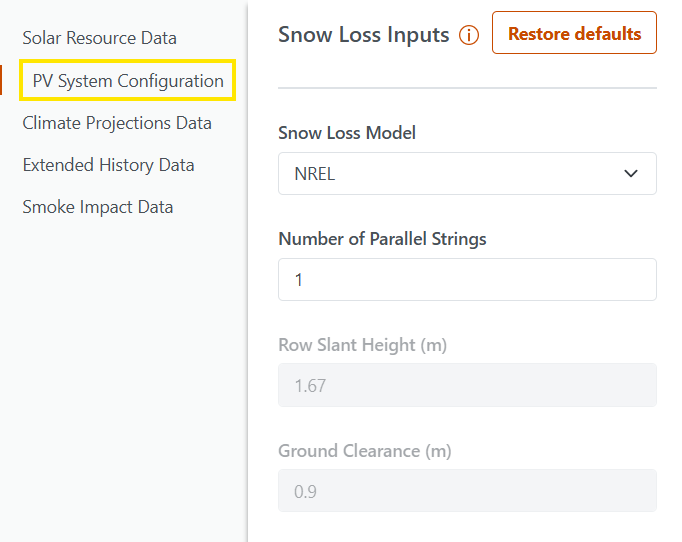
- In HelioScope, add the 12×1 of monthly values from the AYS file into your Condition Set under Irradiance Losses and Bifacial Modeling.
If you run into an error, contact us at support@solaranywhere.com.