
SolarAnywhere aggregated time-series data is available for historical time periods with a SolarAnywhere Sites license. Aggregated data files provide our trusted irradiance and weather data in a format that allows for an overview of locations at a broader temporal resolution than the hourly and sub hourly timesteps found in our standard time-series datasets.
Historical aggregated time-series data can be downloaded from the SolarAnywhere data website or requested via API with access to a Sites license. This data can be requested at monthly resolution. The period available and the spatial resolution are dependent upon the geographic data region.
Download Aggregated Time-series Data Sample (CSV File)How to Access
Aggregated time-series datasets are currently offered through our Sites Licenses, with access through the SolarAnywhere online data portal or SolarAnywhere API.
Access via the SolarAnywhere Website
Aggregated time-series files are available for download from the SolarAnywhere map interface. These files are output in a custom file format designed to provide summarized insights into solar resource availability at a PV site location.
To get started, follow the steps below.
- Select a new location for download by searching by the site location or by choosing a tile pin location on the map. You may also select an existing Sites location from your Location List.
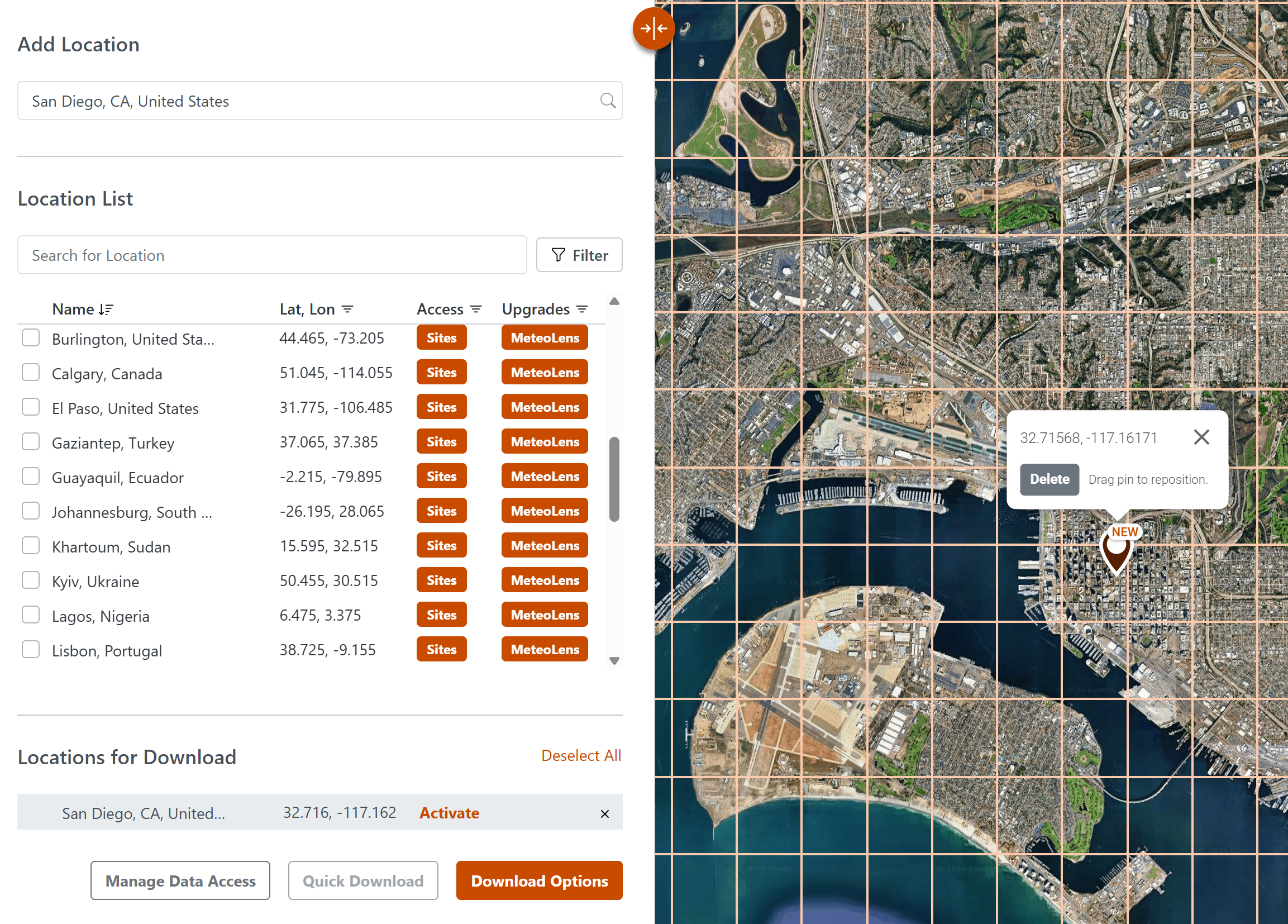
Figure 1. Selecting a Location on the SolarAnywhere Data Website
- To activate the new location, choose Activate for the selected site under Locations for Download. A window will appear to manage data usage for the specified site.
- Under Per-Location Access, find the selected site and click the + button and choose Sites.
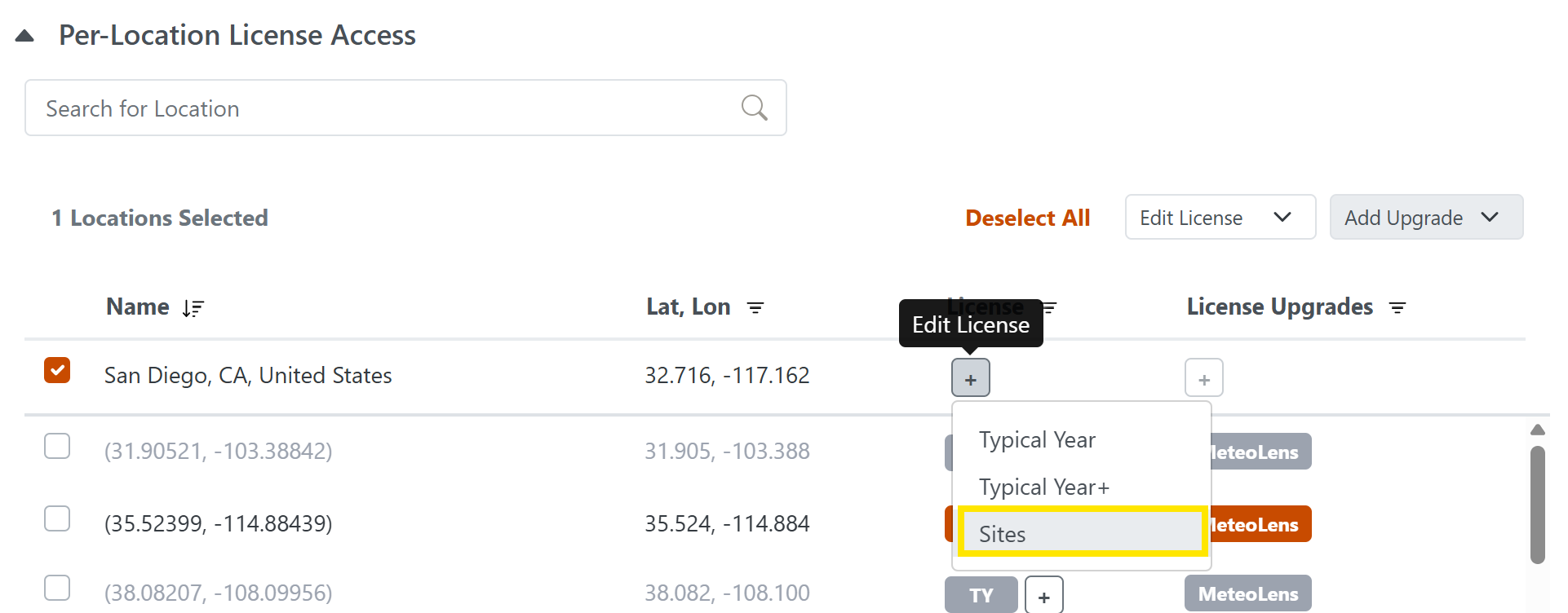
Figure 2. Activating the Sites location on the Manage Data Access window
- Confirm the site activation.
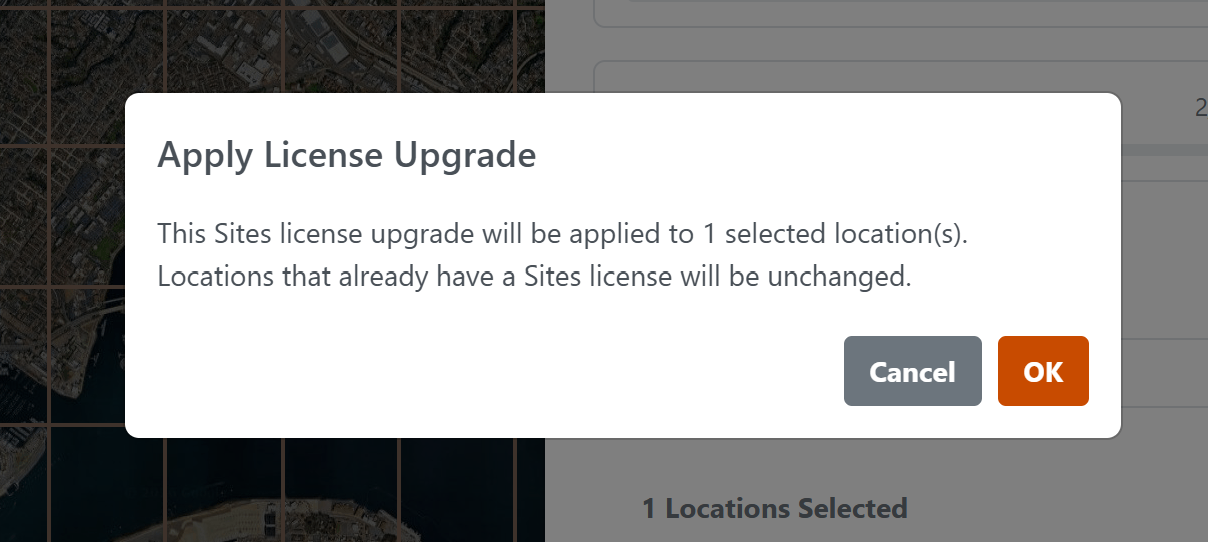
Figure 3. Confirm Site Activation
Note: if no Sites credits are available, users can add credits from the Manage Data Access window under Review and Edit Licenses.
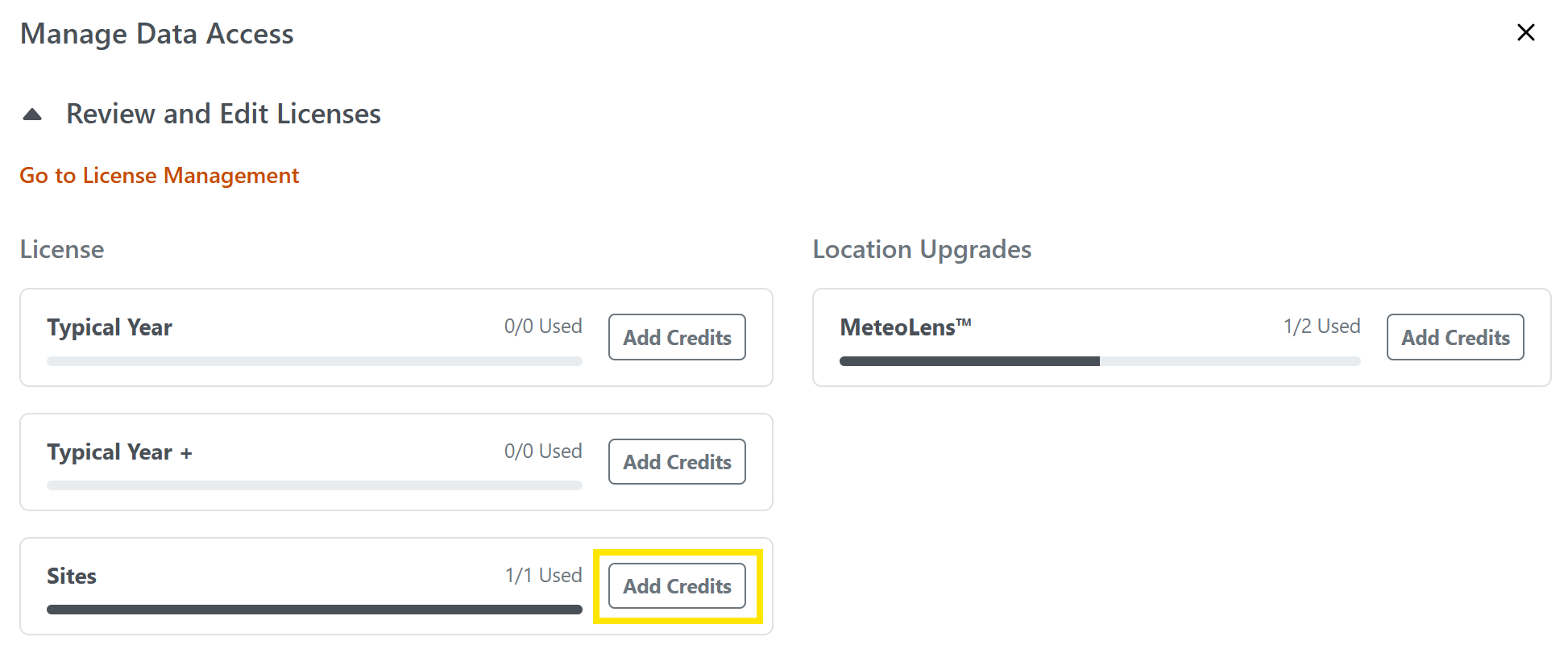
Figure 4. Adding Sites Credits on the Manage Data Access Window
- In the Locations for Download panel, confirm the Sites locations selected for data download. For downloading data for existing site locations, select from the Locations List. Up to 10 locations can be selected from the map or Location List for downloading multiple files at once.
- From the Locations for Download window, click Download Options.
- In the download window, check the box next to Aggregated Time Series under Data File Types.
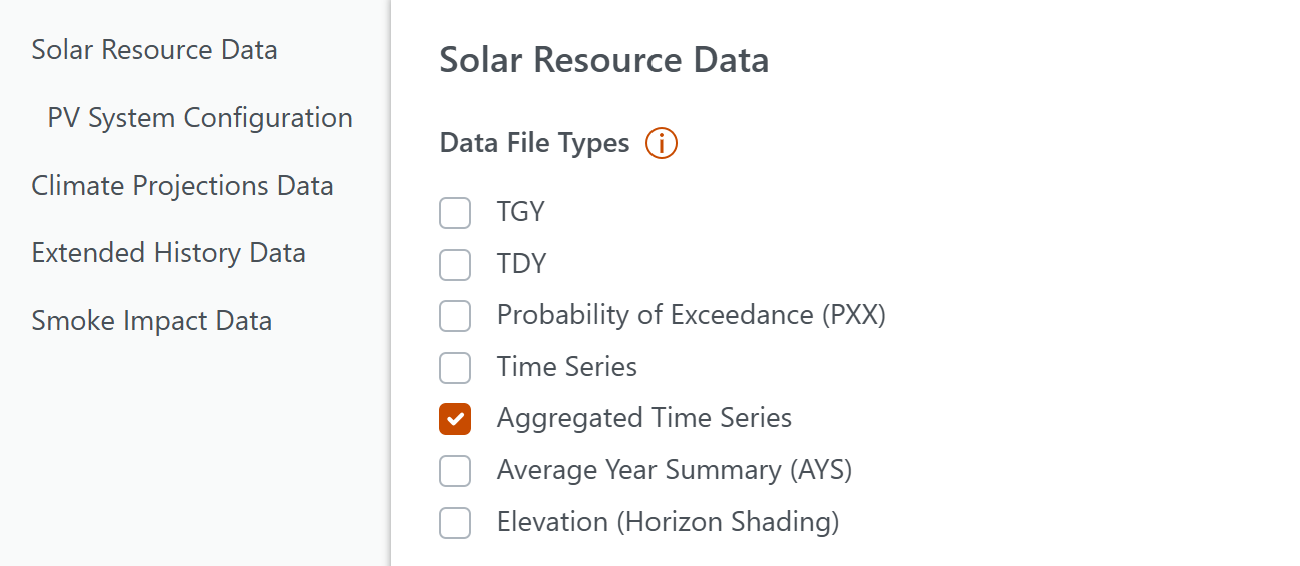
Figure 5. Data File Types in the “Download Options” Window
- Select the preferred date range, spatial resolution and datasets to include in the output file.

Figure 6. Datasets selection in the “Download Options” Window
If any Advanced Fields are selected, such as soiling losses, snow losses and/or POAI, users can click on “PV System Configuration” to modify the parameters used for modeling these datasets.
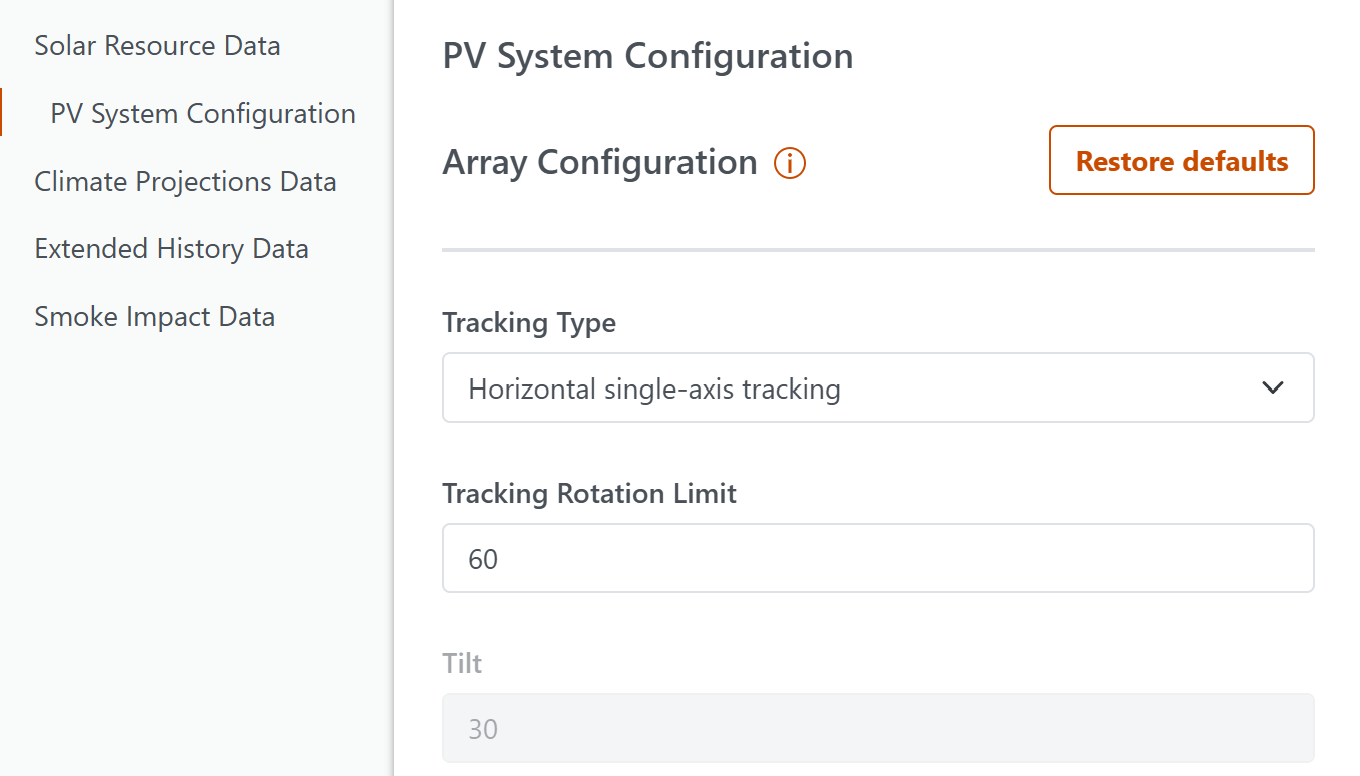
Figure 6. Datasets selection in the “Download Options” Window
- When finished, click “Download” to begin the file download process.
- Navigate to the Downloads tab to download and view the file:

Figure 8. Downloads Tab on the SolarAnywhere Data Website
Users can demo aggregated time-series files with SolarAnywhere Public.
Access via the SolarAnywhere API
Aggregated time-series data can also be requested through the SolarAnywhere API. Visit this page of our API documentation to access an example request.